Saturday, August 13, 2016

Warm-Ups and Exit Tickets for students

Warm-Ups for starting class

Having an activity for students to do independently at the beginning of each class has great benefits. Students can transition into the class without being dependent on the teacher and will get them ready for class.  Warm-Ups make the most out of the time students have in class.  Students are no longer waiting for class to start as students trickle in or get their materials together.  Teachers also don't have to be "On" the second the students walk in.  They can finish up what they are in the middle of doing - talking with a student or another teacher, sending an email, gathering materials for the class.

Here are some ideas for Warm-Ups.  In my school, we call the "Do Now."


Exit Tickets at the end of class

Exit Tickets are a great way tot check for understanding at the conclusion of learning.  Here are some examples for Exit Tickets in the classroom:

Saturday, August 6, 2016

Integrating Games into the Classroom

Source
“Games offer what nothing else can. Through their virtual worlds, students have the opportunity to impact events around them with no prejudice based on youth. Properly selected games invoke problem-solving, critical thinking, logical thinking, and collaboration—all significant skills in Common Core Standards, ISTE guidelines, and 21st Century classrooms.” ~ Jacqui Murray, Ask A Tech Teacher

Using games in the classroom engages students in learning.  They have a passion for games and and are motivated by the challenges they present.  Allowing students to play “games” in class, helps to integrate 21st century skills such as collaboration, creativity, and problem solving as students are learning by experience. Differentiation is inherent in game integration because they play and investigate on their level and can find success along the way.  Games often increase in difficulty as the student masters the levels. This will help students stay motivated and focused in their learning while having fun.
My assignment for the class I’m taking, “Differentiation Using Technology” is -

Play two games and compare/contrast how effective these would be in your classroom and how they differentiate for particular learners.

Bridge Building


In my 6th grade Physical Science and Engineering class, I teach a unit on bridges.  Students learn the importance and necessity of bridges to connect people to places, resources, and other people.  They learn the different bridge types - Arch, Beam, Truss, and Suspension - while learning about the forces that affect them.  Using the Engineering Design Process, students are presented with the unique challenges that engineers face when building bridges.   Teaching students about bridges and how they are built, integrates physics, math, geometry, and history.  This unit also connects with Common Core standards.

For this lesson, I investigated the bridge building  program, West Point Bridge Designer.  This is a free program that needs to be downloaded on each computer.

“The purpose of the Engineering Encounters Bridge Design Contest is to provide middle school and high school students with a realistic, engaging introduction to engineering. We provide this contest as a service to education.
This “game” will provide students with an opportunity to:
  • Learn about engineering through a realistic, hands-on problem-solving experience.
  • Learn about the engineering design process-the application of math, science, and technology to create devices and systems that meet human needs.
  • Learn about truss bridges and how they work.
  • Learn how engineers use the computer as a problem-solving tool.
We also hope you will have some fun pitting your problem-solving skills against those of other virtual bridge designers around the globe.”  Source
In my classes, I have students actually build a bridge using popsicle sticks.  Students really love this lesson and integrate vocabulary and research in their project.  Here is my final project for the bridge after the entire unit is complete.   Even though I love my curriculum plan for the bridge unit, integrating this “game” program would enhance it even more! Students will be more engaged and find more success.  Using physical materials in my project prevents students from easily changing their design.  If they are able to build a virtual bridge, they can redesign it easily.
This program offers examples and templates for the students.  This will help all students in the building process.  In my project, many students struggled to get started.  Even working with another student, they just couldn’t wrap their brains around it.  I personally am not interested in building (anything) bridges but found that I was excited using this program. There is an introductory lesson as well as examples to look at. I never felt alone or intimidated by the design.  When the design didn’t work, I was able to quickly change it without anyone noticing.  I felt successful!  Any student will be able to use this program and feel success.
Step-by-Step Instructions
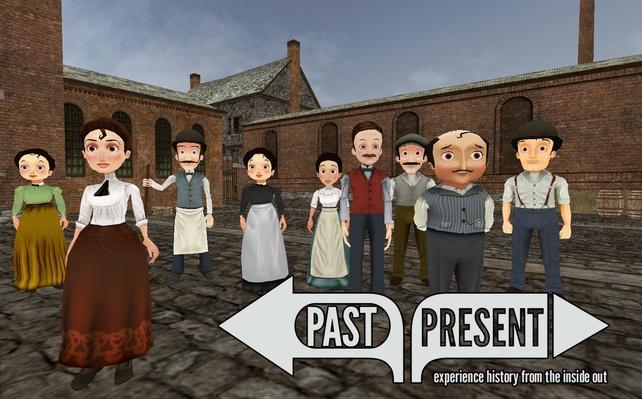
Past/Present
Source
“Designed to impart decision-making and critical thinking skills in study of American history.  An interactive 3D "virtual world" in which student "becomes" a fictional character caught up in big issues of early 1900s.  Appeals to gamers as well as novices.  Have students do a pre-blog about their immigrant knowledge. When finished, blog about what they learned.  Requires registration; free to use; teacher accounts available.” ~ Jacqui Murray, Ask A Tech Teacher
This game would be great to integrate into social studies classes, and suitable for ages 10-15.   This “game” is a great addition into the classroom.  In school, students are often asked to read, research and memorize information without connecting it to their real lives.  When students don’t connect with their learning, it isn’t meaningful for them and they often don’t enjoy it; or even worse, learn it.  This “game” integrates video with historical information and attaches it to characters from the past.  
This game perfectly differentiates for students.  Students have to gather information to learn about the different quests that they embark on.  They are given big questions and are led through different scenarios to answer the question.  There are different icons to click on for information. Students can gather resources and vocabulary and put it in their satchel, a gear icon to access tutorials on topics that they may need additional information on, and tips for playing the game.
Information about the game.  Click HERE for the source of the information.
What is Past/Present?
Past/Present is an immersive computer game designed to impart decision-making and critical thinking skills in the study of American history. The game tells the story of four days in the life of a fictional mill town in 1906. Players can choose to be either an immigrant female mill-worker or a native-born male mill manager. Both characters must deal with labor strife as well as earn money to support their families.
What makes Past/Present special?
In Past/Present, players encounter multiple points of view. For instance, there are two newspapers in Eureka Falls, one a corporate booster and one that agitates for labor. Characters the player meets reflect clashing worldviews, from a fiery socialist vegetable peddler to the mill's watchman, a loyal company man. Players will come to understand that history is not painted in black and white but in infinite shades of grey. In the multi-layered storytelling that is at its core, Past/Present reminds us of the need for complexity in our understanding of the human condition.
Click HERE for website.

Source

Sunday, July 10, 2016

Effective iPad Use in the Classroom - MTI 565

Final Reflection for iPads in the Classroom
MTI 565

Directions: Write a reflective paper on using iPads in the classroom, its potential uses in your classroom, concerns for implementation, and future intentions. Be sure to include specific details on what apps you plan to use and how. Please any experiences you have had so far with your iPad(s) in the classroom. 

         I have been an upper elementary/middle school teacher for 20 years and for the last two years I have been the Digital Learning Specialist for my district, grades Pre-K through 6.   I got my new job because I integrated different technologies into my lessons and my administration thought I would be a good fit.  I am a fast and hungry learner when it comes to improving my students’ academic experience.  When I used different technological programs they were so excited and came to life.  Going into this job, I knew the importance of technology integration.

Technical support for iPads

        Last year we switched from Apple Configurator to the Casper Cloud Based Management System.  Now, the apps can be added from a computer at any time.  Also, the iPads don’t have to be in the carts when apps are pushed out.  We can simply choose an app and add it to the iPads, whether it’s to iPad or the entire cart.  We can also set the iPads up to update automatically.  This is amazing!
       A lot of times, we have internet connection issues.  Our IT director worked very hard to solve this issue.  He added WAPs (Wireless Access Points) in increase connectivity.
We have put into our budget money to purchase new apps.  This is extremely important because a lot of the free apps are limited.

Management of Apps

       I am in the process of developing a plan for purchasing new apps.  Teachers are always asking about ordering new apps, but there hasn’t been a real plan for this.  Now, teachers have will have several ways to get the apps they want. They can do the research and email me their request.  They need to state the uses for their students and how it will benefit their learning.
Teachers can also ask me for apps.  They can tell me that they are looking for a good app for math review or behavior management, and I can do some research on it.
 I have done a lot of research during this course and have found some great apps that will work from my teachers and students.  I am sending my teachers a survey with a list of the current apps that we have, as well as some new ones that I have found during this course.  They will state whether they use the old apps or not and we will take off the ones that we aren’t using.
One problem we have with our iPads is space.  Our iPads only have 16gb which means that we can’t have too many apps on our iPads.  When teachers use the apps for projects, they take pictures and videos which also take up a lot of space.  Teachers and students are finding that they can’t email or send out their projects because all of the space is used up.
         I will need to work with teachers and students and show them how to send their final projects off of the iPads.  We are a Google Apps for Education school so we can send our projects to Google Drive to save and then delete it from the iPad.  This will save space on the iPads.

Training for iPad apps

       I will work with teachers during professional development times to teach them how to use some of the apps.  Teachers and students need time to explore the apps and see what they can do.  Working together, teachers can share how the app will benefit their students.
       I will work with the students in their classroom to teach them how to use the app.  I will create a project based on the curriculum with them using an app and have the teacher there to learn it as well. This way, the teacher can use the app for future projects.
       I will continually support the teachers and students.  I have created a group of 6th grade students called “Student Help Desk” to help their teachers and peers with technology integration in the classroom.  I will first train these students on the app and then they will be a valuable asset to their teacher and classmates.
Ipad Apps in the Classroom

As with anything that you are learning, investigating and finding apps can be overwhelming.  I have learned about many apps during the class and have found a lot that I know my students and teachers will benefit from.  I think I’m going to start with five “Core Apps” to really use in our classes.  Of course, teachers and students will use other apps, but my focus will be on the training and implementation of the Core Apps. This way it won’t be too overwhelming. Click on the live links for additional information.  Some of them link to the website they explains how to use them.  The source of each link will be found here.

Core Apps

Explain Everything

 * Explain Everything™ Interactive Whiteboard ($3.99)
By Explain Everything sp. z o.o.


Click Here for description of app and examples of projects.

Click HERE for training videos and materials.

“Explain Everything is an app that allows teachers and students to create presentations, or record screencasts to demonstrate a concept or illustrate a tutorial.  Combining inking, images, text, and voice, Explain Everything offers a one-stop shop for student created work.”  Source

iMovie 

iMovie by Apple ($4.99) - Comes free with all iPads purchased after September 2013


Click HERE for description of app and examples of projects.

Click HERE to see how iMovie can be used to promote Bloom’s Taxonomy.

Click HERE for a complete tutorial video for iMovie.  (8 minutes)

“With a streamlined design and intuitive Multi-Touch gestures, iMovie lets you enjoy your videos and tell stories like never before. Browse your video library, share favorite moments, create beautiful movies, and watch them on all your devices in iMovie Theater.”  Source

Green Screen


* Green Screen by Do Ink ($2.99)
By DK Pictures, Inc.
“The #1 Green Screen app for the iPad in Education, now available for the iPhone too! Green Screen by Do Ink makes it easy to create incredible green screen videos and photos. Classroom-tested by kids and teachers, this app emphasizes ease-of-use and simplicity while still enabling fantastic results. With Green Screen by Do Ink, you can tell a story, explain an idea, and express yourself in truly creative and unique ways.  You know what a "green screen" effect is, right? It's used in the movies to make it look like the actors have landed on an alien planet, and it's used on TV to make it look like your local news announcer is standing in front of a weather map. The green screen effect works by combining images from multiple sources into a single video. These images can come from photos or videos in your camera roll, or from the live video camera.”  Source

Book Creator


* Book Creator for iPad - “create ebooks and pdfs, publish to iBooks ($4.99) By Red Jumper Limited
Book Creator is the simple way to make your own beautiful ebooks, right on your iPad.”  Source
Book Creator tutorial videos.
Make comic books with Book Creator.

Chatterpix


Chatterpix  Kids by Duck, Duck, Moose
“Grab your camera! Let’s ChatterPix! Chatterpix Kids can make anything talk -- pets, friends, doodles, and more. Simply take any photo, draw a line to make a mouth, and record your voice. Then share your Pix with friends and family as silly greetings, playful messages, creative cards, or even fancy book reports.” Source


I have learned a lot during this course.  I look forward to working with teachers and students to implement the iPads into the classroom.  I have already started getting the technical issues resolved and will start the school year off by training the teachers.  I will support the teachers and students throughout the year to create projects that connect to the curriculum.  It’s going to be a great year!

Wednesday, June 15, 2016

Using Skype for Pre-School Step Up Day

The Pre-School students at Howe Manning had a virtual Step Up Day with the Kindergarten students and teachers. Since we aren't physically in the same building, we used Skype to communicate and connect with each other.

The Pre-School students are a little nervous to go to Kindergarten.  They wrote some questions to ask the Kindergarten students and teachers.  They feel much better after having their questions answered.


Here are the questions:

1. How many colors do we need to use on projects?
2. What do you do in Kindergarten?
3. How long are we going to stay there?
4. Do we have rest time? 5. Do you have blocks in Kindergarten?
6. Do you have a schedule to look at?
7. How many toys do you have?
8. Do you have a job chart?
9. What color paints do you have?
10. Do you have a calendar?


We'd like to thank all of the teachers and students for taking the time to answer our questions.


Tuesday, June 14, 2016

Dr. Creeden Day in Middleton

Middleton Public Schools made June 13th "Dr. Creeden Day".  Dr. Bernard Creeden is the superintendent for the Tri-Town Schools, Middleton, Boxford, and Topsfield.  He has been in education for 36 years and it is now time for him to retire.

The students at Fuller Meadow and Howe Manning schools honored Dr. Creeden with gifts, songs, advice, and appreciation.

Watch the video below to view our celebration.


The staff and town employees created a video, "Taking Care of Business" to show our love for him.  Watch below.


Thursday, June 9, 2016

Using Book Creator in 2nd Grade

Second graders have been very busy learning about the life cycle of the Painted Lady Butterfly.  In Mrs. Kennedy's class, her students used the iPad to take pictures of each stage that their butterflies went through.  Not only did they take pictures of each stage, they created poems, drawings, and a scrapbook to chronicle the event.  On a beautiful, sunny day, the students released their butterflies in our courtyard.  They were so excited to watch them fly to freedom.

After the butterflies were released, the students created their own storybook using the iPad app, "Book Creator".  They learned how to use the tools and imported many of their own pictures to portray the life cycle of the Painted Lady Butterfly.

Each video has been organized in the program, "Blendspace".  Simply click on the circle in each block to watch the video.


Click below to read and listen to the entire class book:

Total class butterfly book from Dierdre Baker on Vimeo.


In Mrs. Frey's class, students created a book using "Book Creator" to show Animal Adaptations.

Click the picture below to read the entire class book:


Wednesday, April 13, 2016

Digital Safety at Fuller Meadow School

Students in Kindergarten, First and Second grade had a fun time learning how to be safe when using digital devices.  They certainly learn this each time they are in their computer classes with Mrs. Pazdziorny as well as from their classroom teachers.  During our Team Time this week, we had another opportunity to discuss how to stay safe.

What is Digital Safety?

"Internet safety, sometimes referred to as digital safety, on-line safety or cyber safety, is a relatively new concept that has grown with advances in the Internet. There are many aspects to Internet safety. Broadly, the term refers to practices and precautions you should observe when using the Internet, so as to ensure that your personal information and your computer remain safe."  Source


Check out some of these great resources for Digital Safety...